
How do I know an update is available?
Option 1: You’re subscribed to our Colour Space Transform newsletter. Then, you will receive an email whenever an update is available.
Option 2: Periodically check the release notes on the Colour Space Transform’s product page.
How do I know which version I currently have installed?
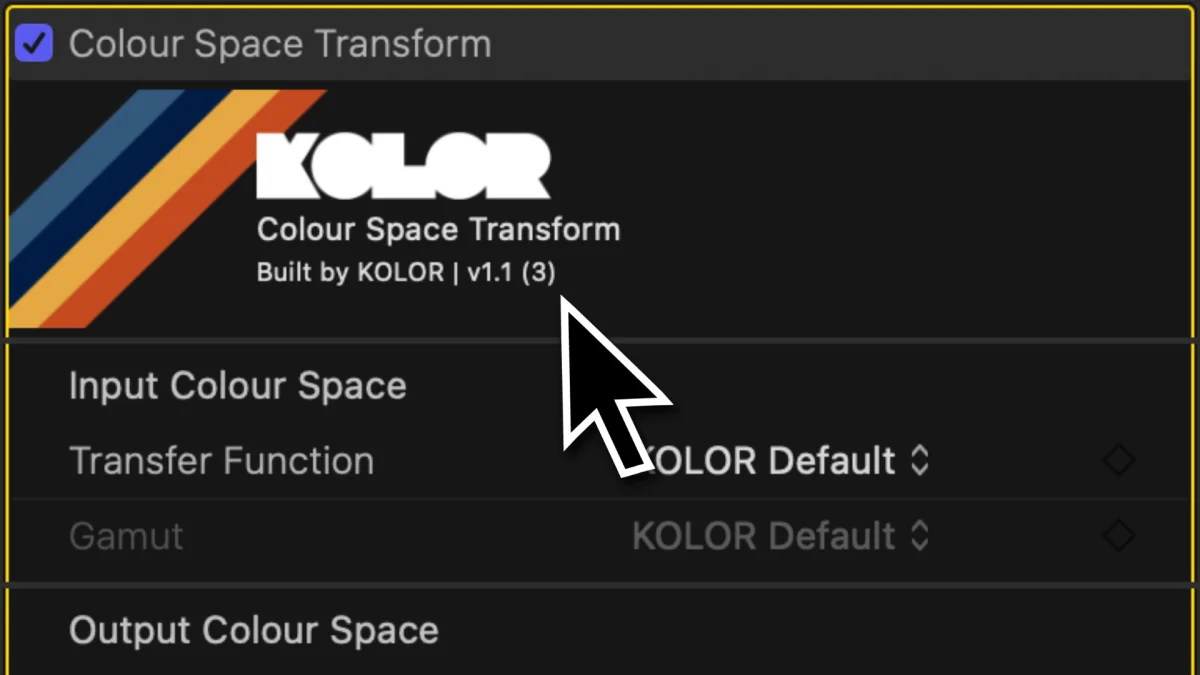
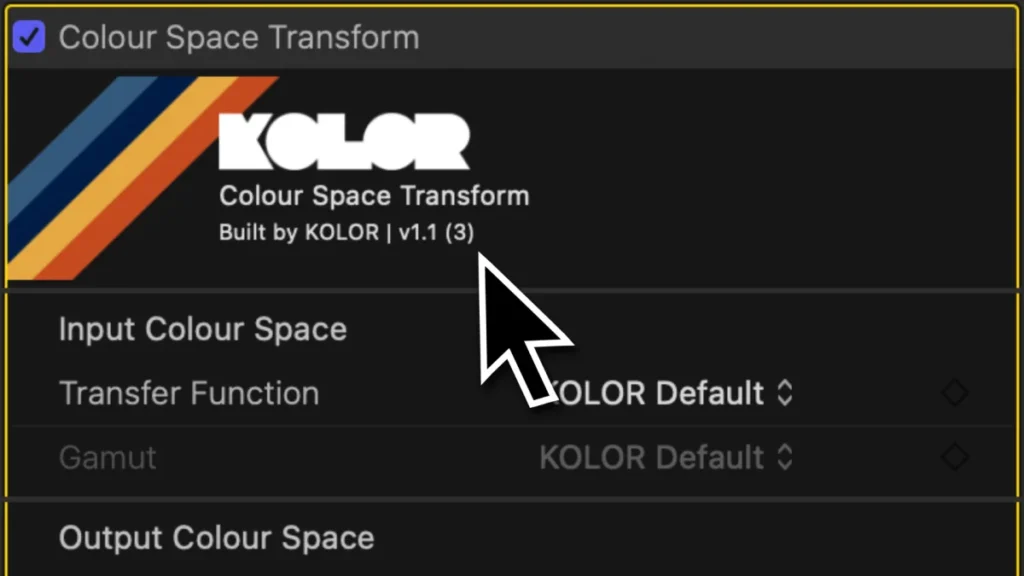
Inside Final Cut Pro, apply the Colour Space Transform plugin to a clip. Inside the plugin header, you will see the current version number.
Will updating the plugin break my projects?
Generally, we always recommend you finish your current projects before updating.
However, usually our updates do not break backwards compatibility. So if you really need to update during a project, it’s usually safe to do.
However, sometimes updates do break backwards compatibility. If that is the case, we will issue a warning like this:
2026-06-02 Release v1.1.3
⚠️ ATTENTION! This update is a major update to the CST which means the new version is NOT backwards compatible. Please finish all projects before updating or swap all CSTs in your timeline.
Please also note that previously created Effects Presets will not work and need to be re-created!⚠️
If a release comes with this warning, do not update until you finished your current projects.
If you do need to update or you are working on a long-term project, you need to replace all instances of the Colour Space Transform in your project after updating.
How to download an update?
Option 1: If you’re signed up for our Colour Space Transform email newsletter, you can download the latest version straight from the email using the download button.
Option 2: Navigate to the Colour Space Transform’s product page. Then, scroll down to the download section. If you want to be up-to-date, you can sign up for our newsletter, or you can press “Download Only”. A download will start automatically.

Step 1: Quit Final Cut Pro and unzip the file
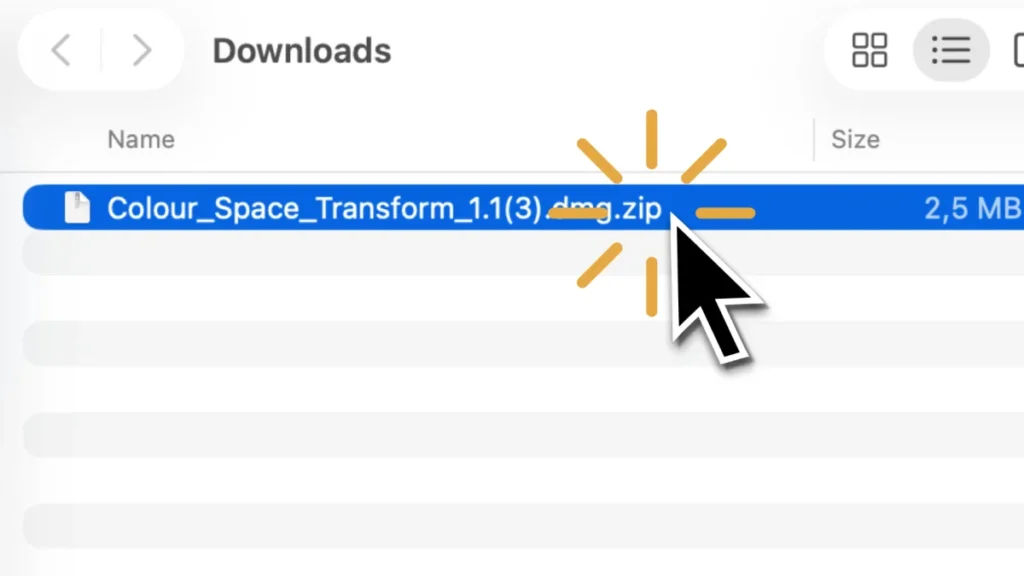
After downloading, double click the zip file if it is not already unzipped.
If Final Cut Pro is still running, quit it now.
Step 2: Run the installer
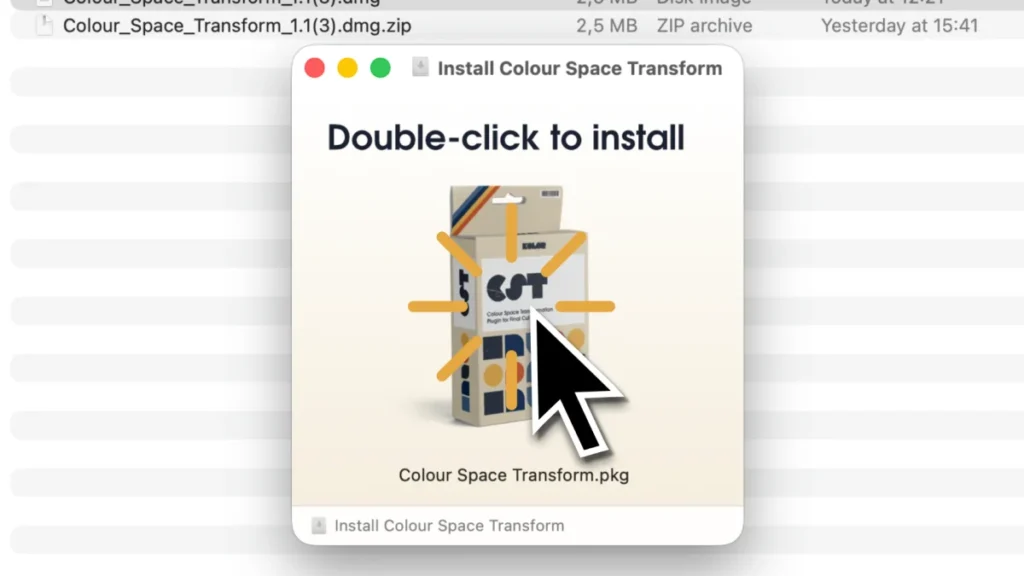
Double click the .dmg file to open this window. Then, double-click to install.
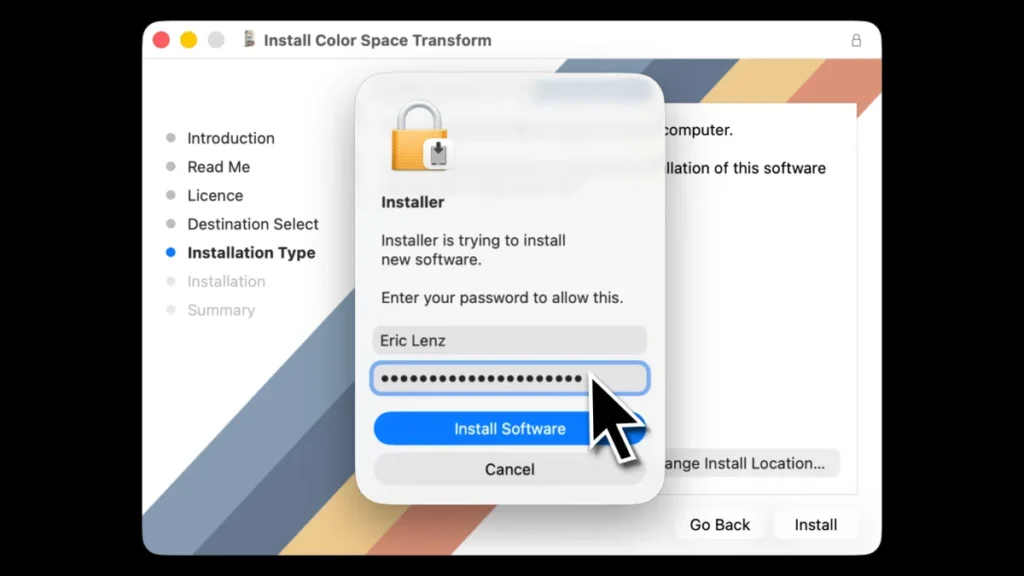
Step 3: Enter your password
Enter your Mac’s password to install the Colour Space Transform plugin.
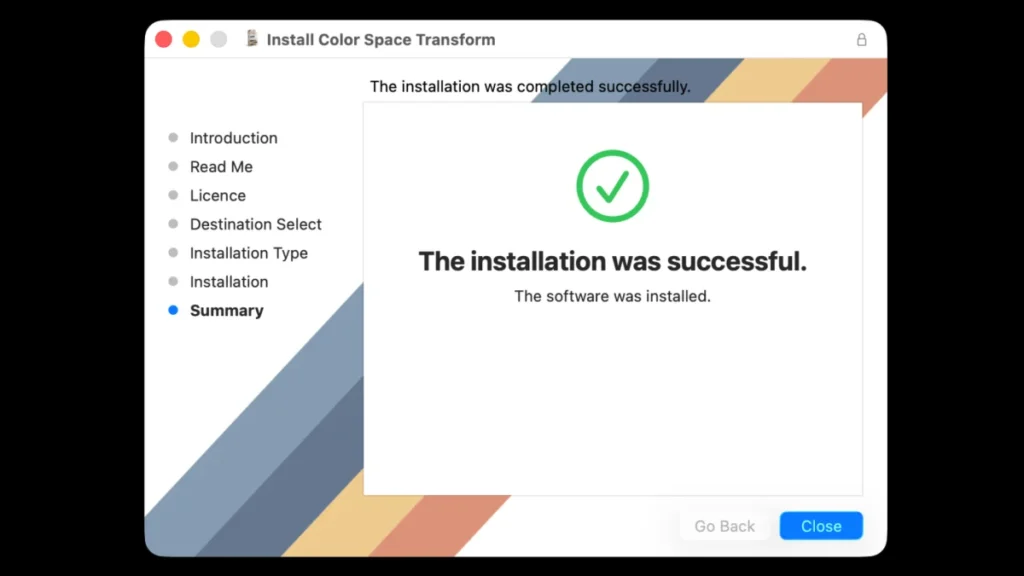
Step 5: Successful installation
After running the installation process, you will see this screen. That means everything has been installed successfully.
The installation did not work? Please see our troubleshooting guides before reaching out to us.
Step 6: Back up your current version (optional but recommended)
Copy and store the dmg.zip file you downloaded somewhere so you can roll back to an older version if you need to.
How can I get an older version of the plugin?
If you did not back up your current version, we’re happy to send you an older version. Just contact us!