
BASIS
Welcome to the
Colour Grading End-Game
Meet BASIS – The best Colour Grading Plugin for Final Cut Pro
Compatible with Final Cut Pro on macOS



Everything you need
All in one place
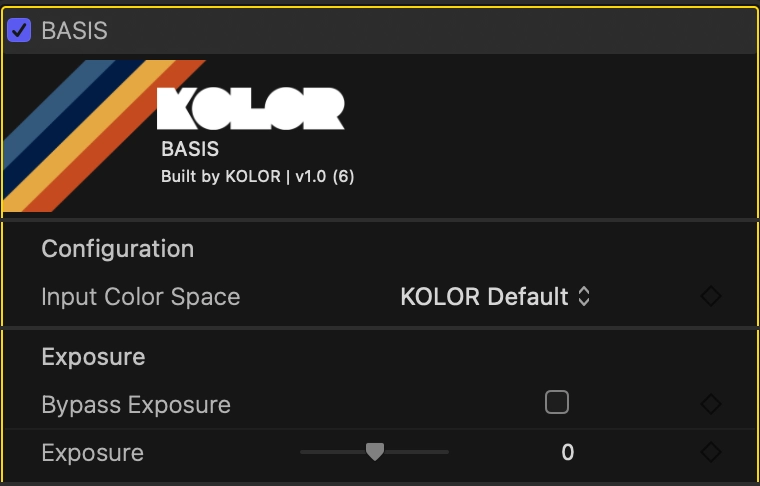
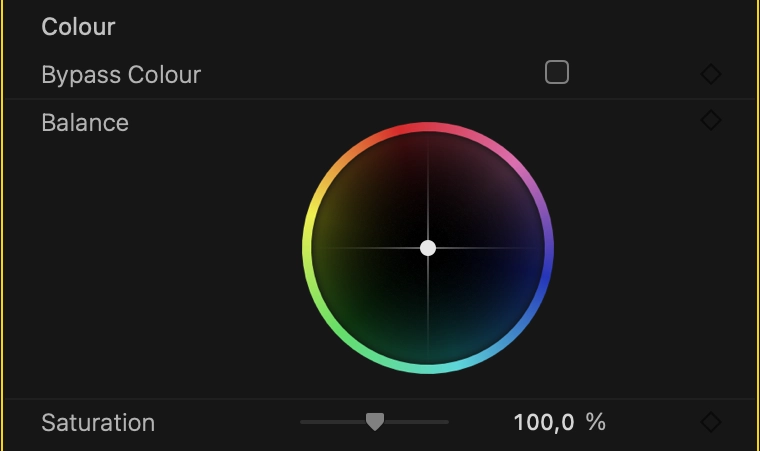
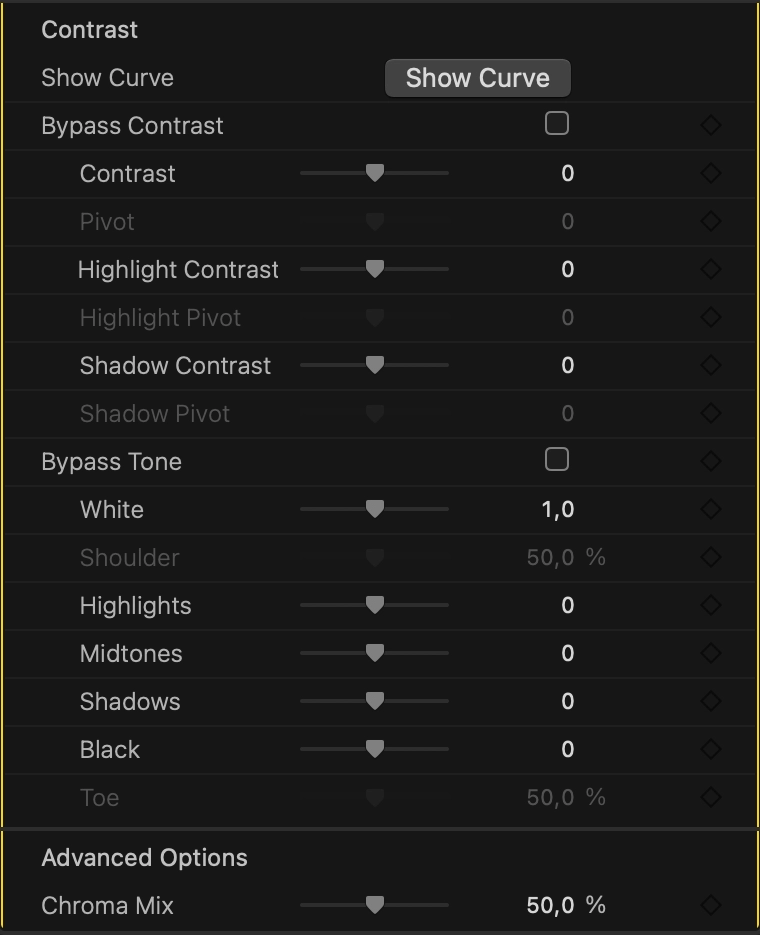

The Best Colour Science in the Business. Period.
Setting a new standard of colour grading in Final Cut Pro
KOLOR’s BASIS is the quintessential plugin for primary colour grading in Final Cut Pro.
Thanks to its colour space awareness and high-end colour science, you can tackle the most challenging shots with ease.
See for yourself.
Tungsten with incorrect White Balance
This scene was shot under tungsten-coloured light with an improperly set white balance. Correcting this shot would require a lot of effort, since it is log footage, not raw footage. This correction was done in one move using BASIS’ Balance Wheel.
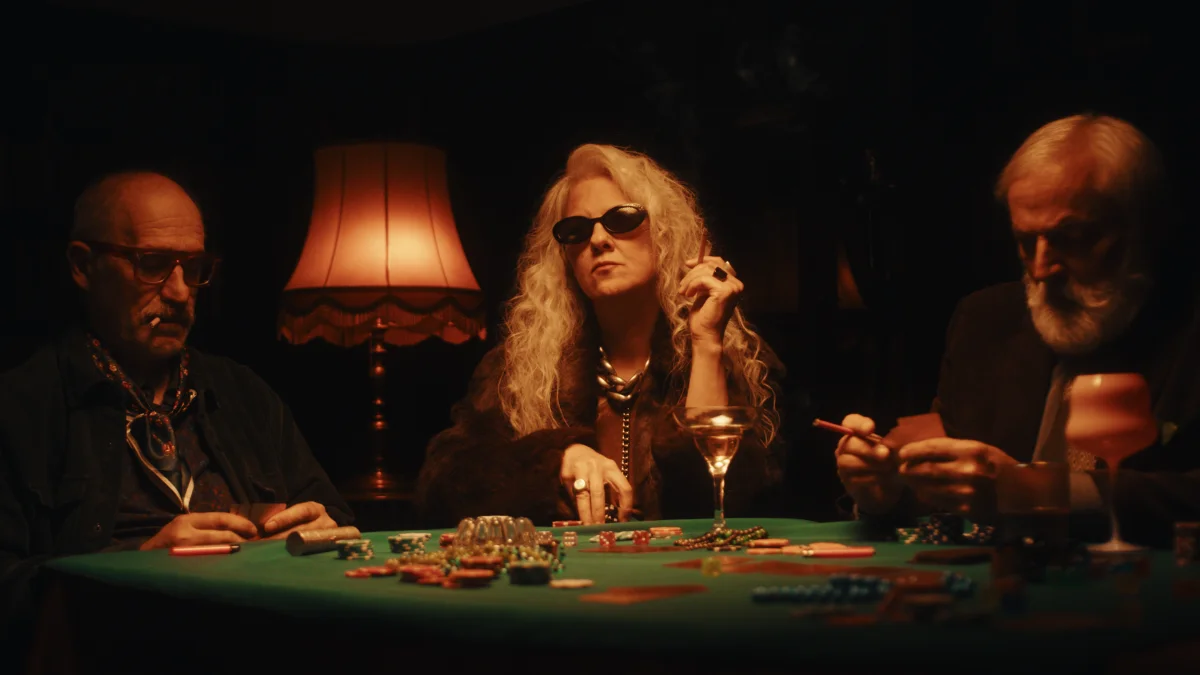 Before
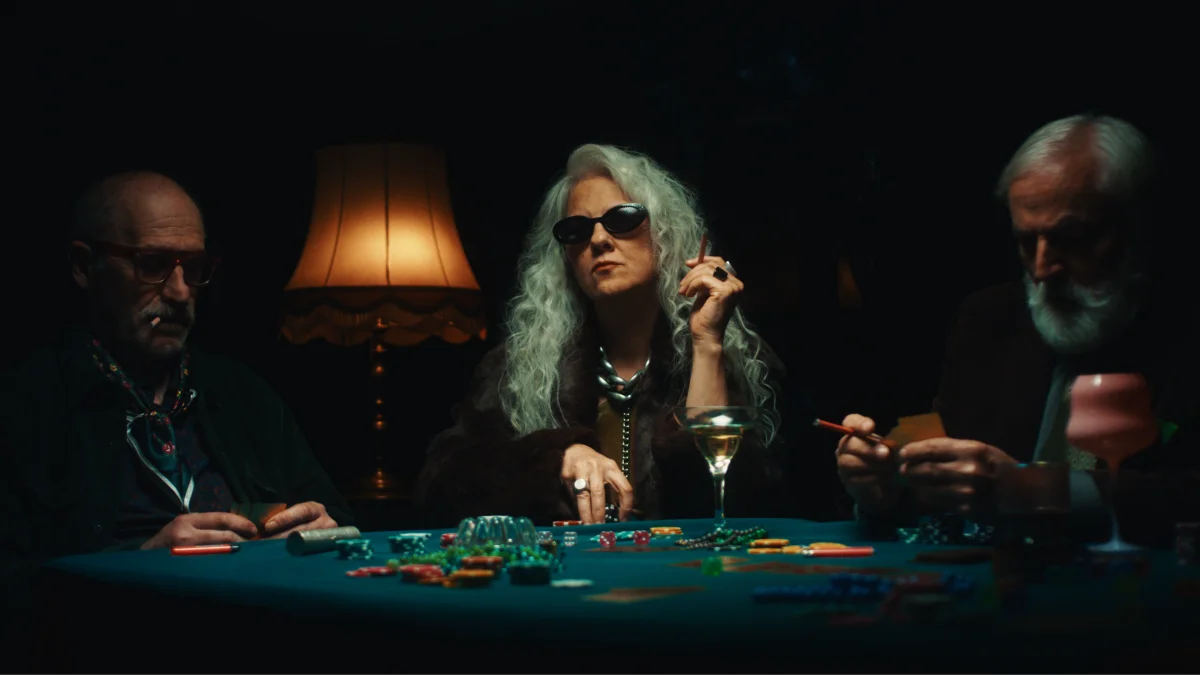 After
After
Underwater Footage from Action Cameras
You’re looking at footage from a DJI Osmo Action 4. Correcting this shot was achieved by taking advantage of a proper working colour space, using our Colour Space Transform Plugin for Final Cut Pro plus some light tweaks with BASIS.
 Before
 After
After
Footage generously provided by diver Andreas Abstreiter from bluewavefilms.de
Under Water Footage from Any Camera
Under water footage is one of the most challenging types of media to work with. Even when it comes out of a solid camera, like these shots in V-Log from a Panasonic GH5, colour correction can be a pain. Thanks to BASIS, you can enjoy these images without distracting colour rendition.
 Before
 After
After
Footage generously provided by diver Andreas Abstreiter from bluewavefilms.de
Everything behaves as In-Camera-Adjustments would
The Problem
Almost all modern controls from inside Adobe Lightroom to DaVinci Resolve introduce unwanted side effects when adjusting anything.
Such as changes in exposure when adjusting contrast or just weird behaviour when adjusting exposure.
Why BASIS is different
BASIS does none of that as it works truly photometrically. This means changing exposure by one stop is identical to changing the aperture or shutter speed by one stop in camera. Additionally, adjusting contrast doesn’t move exposure as the pivot is centred exactly at middle grey.
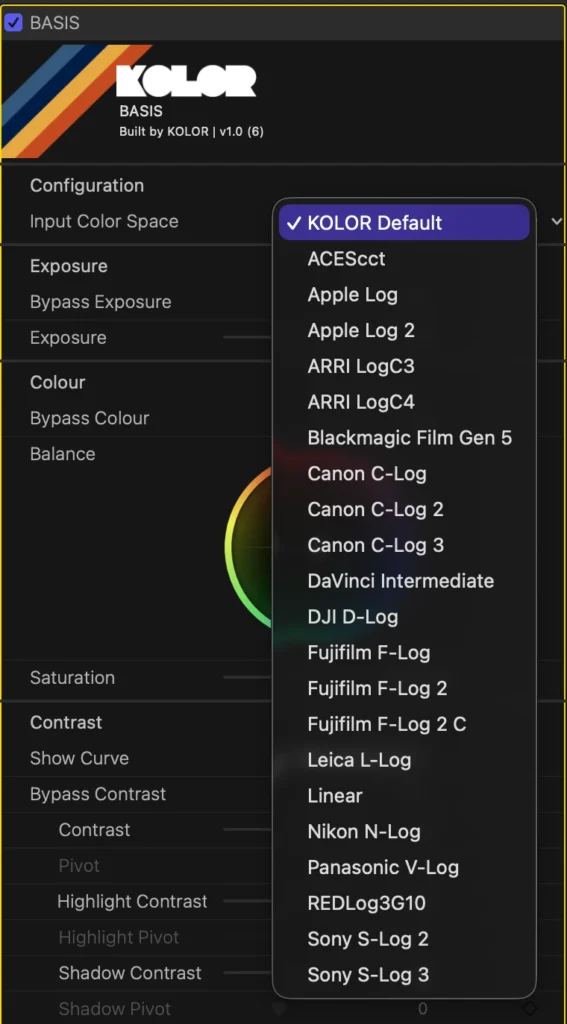
To achieve that, BASIS supports all common working colour spaces to calculate all adjustments precisely and photometrically.
You might want to use our Colour Space Transform Plugin for Final Cut Pro to convert your footage to a working colour space and later to Rec.709 before using BASIS.
Reinventing the Wheel
To make the impossible possible
Traditional White Balance
Traditionally, balancing a shot requires adjusting temperature and tint sliders.
The temperature slider makes your image warmer or cooler. The tint slider shifts your image towards green or magenta.
We can illustrate these sliders inside the vector scope as temperature and tint are just two arbitrary axis inside the colour circle.
But why do we use two linear sliders to move inside a circular colour wheel in the first place?
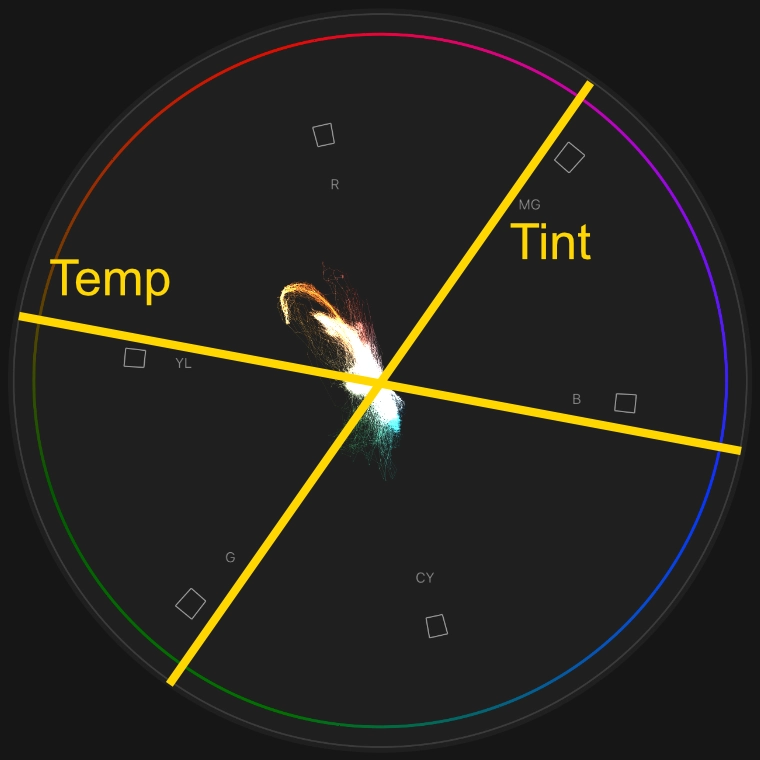
If this video doesn’t play automatically, please wait a few seconds or check your browser settings.
Balance using the Vector Scope
Since we want to move the signal mass across colour circle, why not just grab it and move it?
In this video, you can see that our footage is pretty warm.
The vector scope shows all the signal mass in the north-west area of the colour circle.
To balance this image, we therefore need to pull the image to the south-east area.
So we just grab BASIS’ Balance Wheel and do it.
Control Points on Curves are for Cavemen
Welcome to the Future, where we use our Mouse

Adjust Region Value
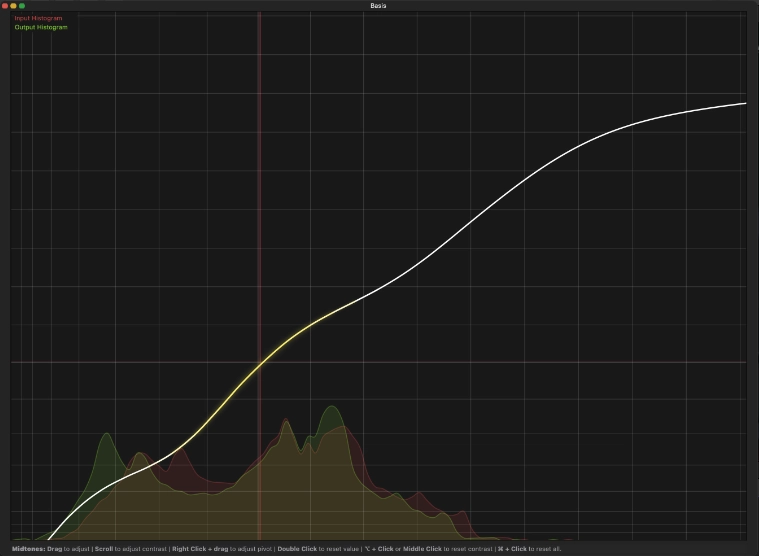
Adjust the value of whites, highlights, midtones, shadows and blacks by clicking and dragging.

Reset Region Value
Double click a region to reset its value. This leaves adjustments to contrast, pivot, shoulder and toe intact.

Adjust Contrast and Region Contrast
Hover over the midrange and scroll to adjust the overall contrast of your image. Hover over the highlight or shadow region to adjust highlight- or shadow-contrast respectively.

Reset Contrast and Region Contrast
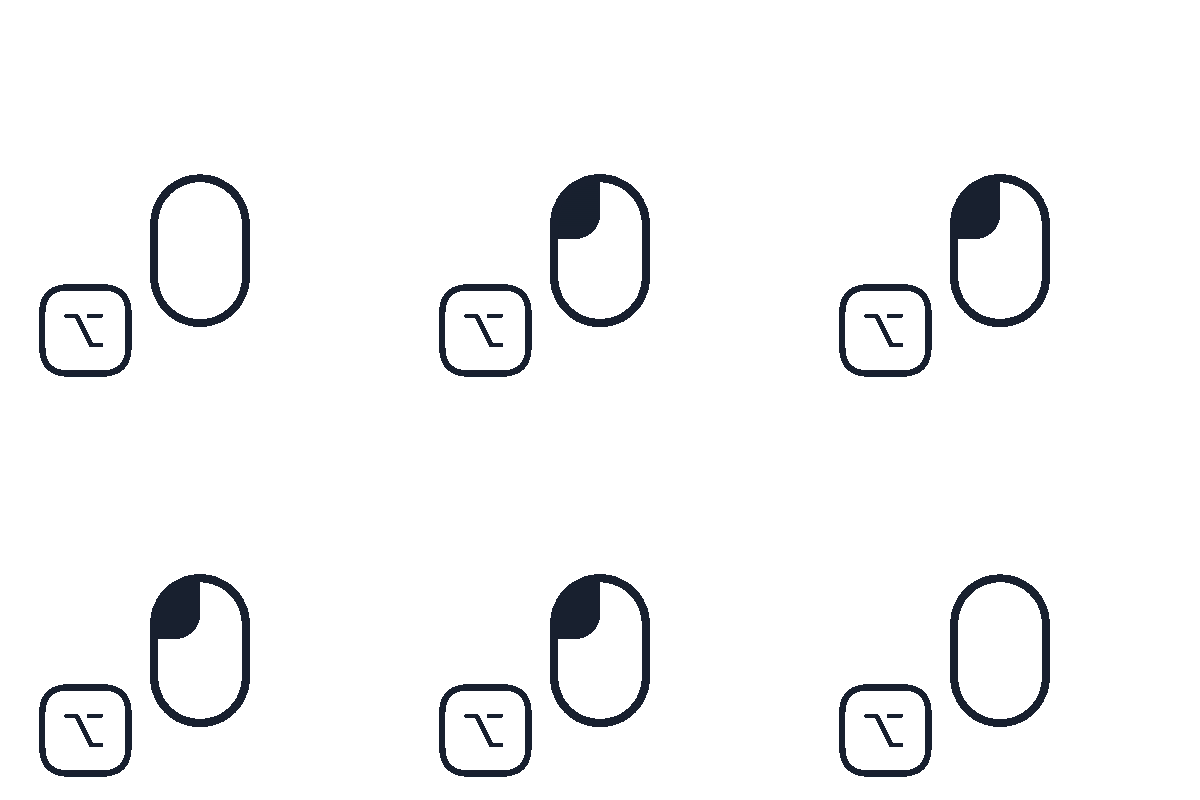
Click the middle mouse button or hold ALT and left-click to reset the contrast.
Attention! This leaves your previously set pivot intact.

Adjust Pivot and Region Pivot
By clicking and dragging using your right mouse button, you can change the pivot of the general contrast, the highlight and the shadow contrast respectively.
Reset Everything
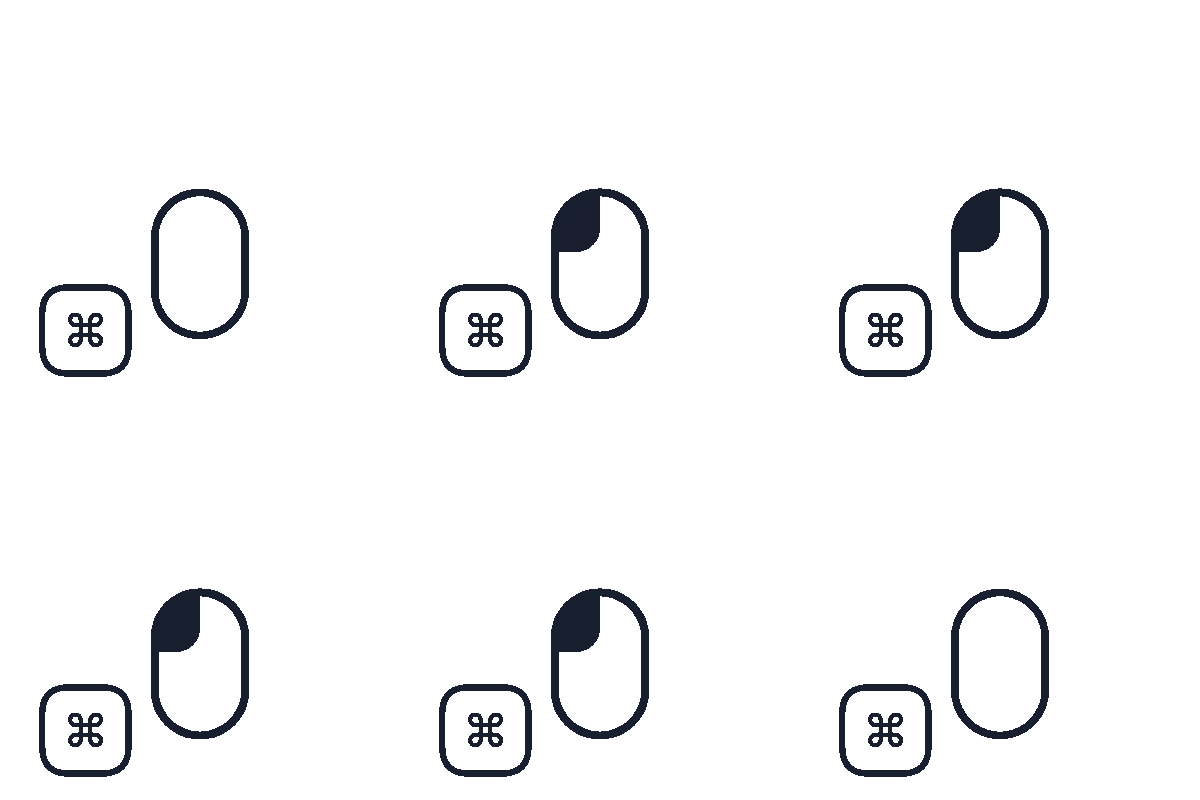
Hold CMD and left-click anywhere to reset the entire contrast and tone adjustment.
Loved by Everyone
Why we’re convinced BASIS is the best Colour Grading Plugin for Final Cut Pro

Jasmin Schulz
“BASIS is way ahead of the competition in my opinion when it comes to Final Cut. I haven’t come across anything else that integrates so naturally into the workflow while delivering such useful results.“

Brad West
“BASIS has completely changed the way I grade LOG footage in Final Cut Pro. The tools are intuitive and easy to use, and a proper color pipeline makes grading faster, more enjoyable, and consistently delivers better-looking results.“
Elevate your Colour Grading today
Buy once – Be sorted forever
Free Trial
✔ All Features Available
✔ Works for an unlimited amount of time
✔ Video Tutorials Included
❌ Puts a Watermark on your Image
Full Version
✔ Free Updates within a Generation
✔ Compatible with Final Cut Pro 11.1.1 or later on macOS Sonoma or later
✔ Video Tutorials Included
✔ Instant digital Download
✔ No Subscription
Agency Version
✔ Free Updates within a Generation
✔ Compatible with Final Cut Pro 11.1.1 or later on macOS Sonoma or later
✔ Video Tutorials Included
✔ Instant digital Download
✔ No Subscription
⚠️ If you’re purchasing BASIS as a company, we kindly ask you to purchase as many seats as you need.
0 €
per seat
System Requirements: 💻 Apple Silicon Mac – 🖥️ macOS Sonoma or later – 🎬 Final Cut Pro 11.1.1 or later
Any Questions?
Frequently asked questions about BASIS
Sure thing! Even better, use BASIS in tandem with our free Colour Space Transform for Final Cut Pro and always provide the right inputs for your LUTs no matter your footage.
Since BASIS is colour space aware, it can apply its balance using linear gain which is equivalent to changing the white balance captured by the camera and provides cleaner and more accurate results.
Yes! All gestures work on a trackpad, too. You just have to have secondary click (right click) enabled. For resetting contrast adjustments you can use ALT + Left Click instead of clicking the mouse wheel.
Yes! Just select all clips in question and double-click BASIS. However, we do recommend you colour manage your clips first by transforming them to KOLOR Default using our free Colour Space Transform for Final Cut Pro.
Yes, using our free Colour Space Transform for Final Cut Pro ensures you have all the flexibility you need. By default, BASIS only supports true and proper log colour spaces.
If you’re working with D-Log M, Rec.709 or anything else not natively supported by BASIS, please use our free Colour Space Transform for Final Cut Pro.
Please note that the effectiveness of BASIS with non-log footage may vary as it cannot reconstruct information that is not there in the first place. This especially affects BASIS’ balance wheel.
Hue, Saturation, Density and many more are not considered primary adjustments. BASIS is for the basis; the primary colour grade.
To adjust secondaries, you will need SPEKTRUM.
BASIS increases saturation using subtractive saturation. This means, just like in the real world and in analogue film, colours get darker as they increase in saturation. This also prevents colourful surfaces from ending up looking like they emit light.
We believe this is the best method to adjust saturation.
Release Notes
Information about Updates, Releases and Patches
- initial release