
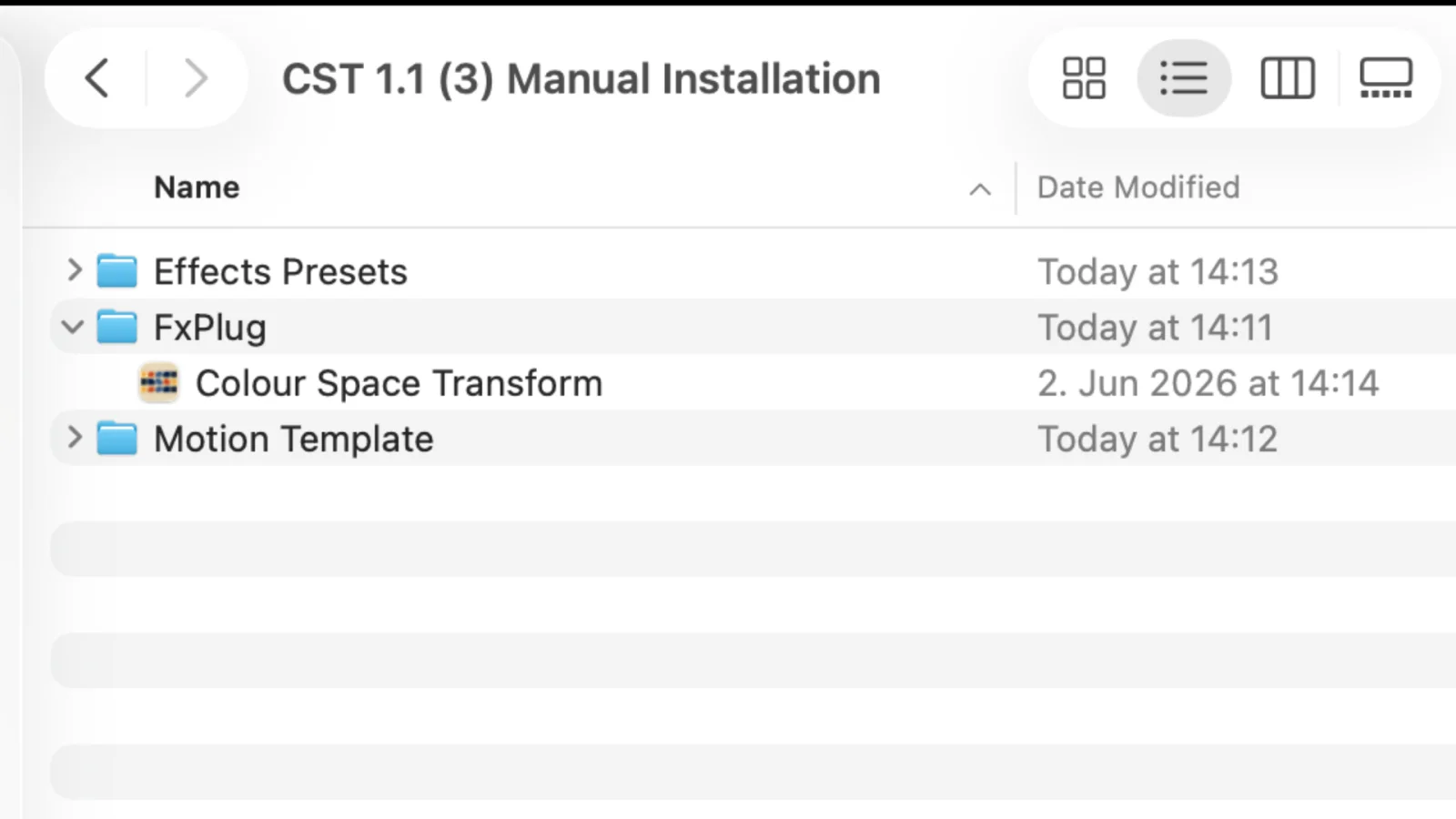
Before you start – Get the files for the manual installation
If our installer fails, we’re happy to provide all necessary files so you can install it manually.
Please reach out to us so we can get you started.
You will receive two or three kinds of files, depending on whether or not a plugin comes with Effects Presets.
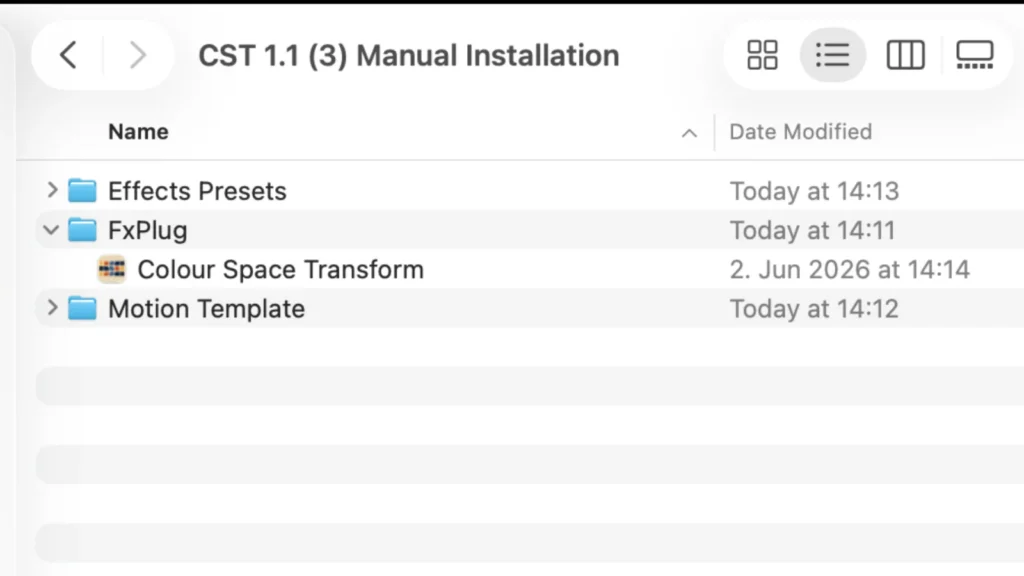
Step 1 – Install the FxPlug App
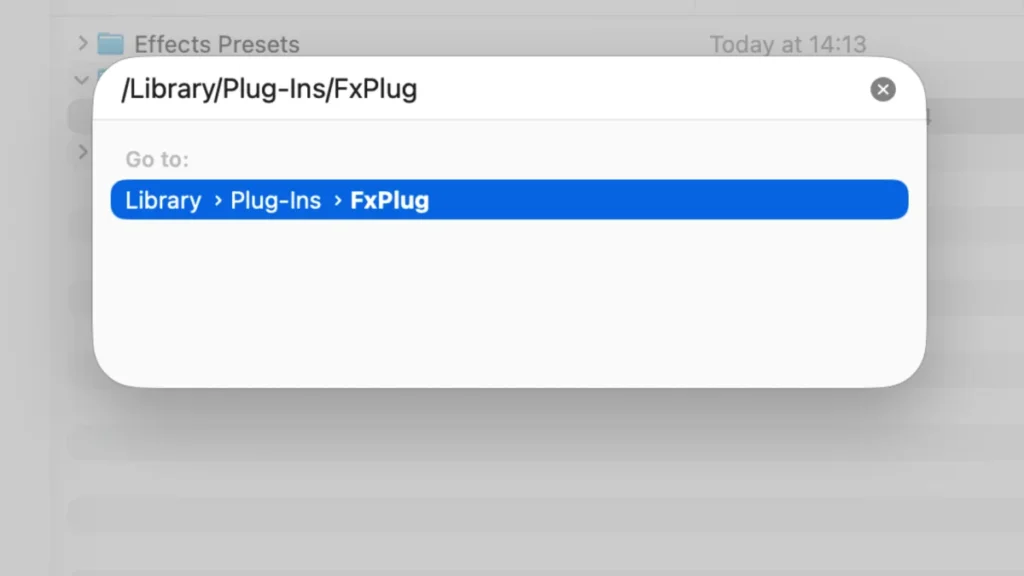
First, copy this file path.
/Library/Plug-Ins/FxPlugNext, using finder, go to your menu bar and select “Go”. Then, click on “Go to Folder…”
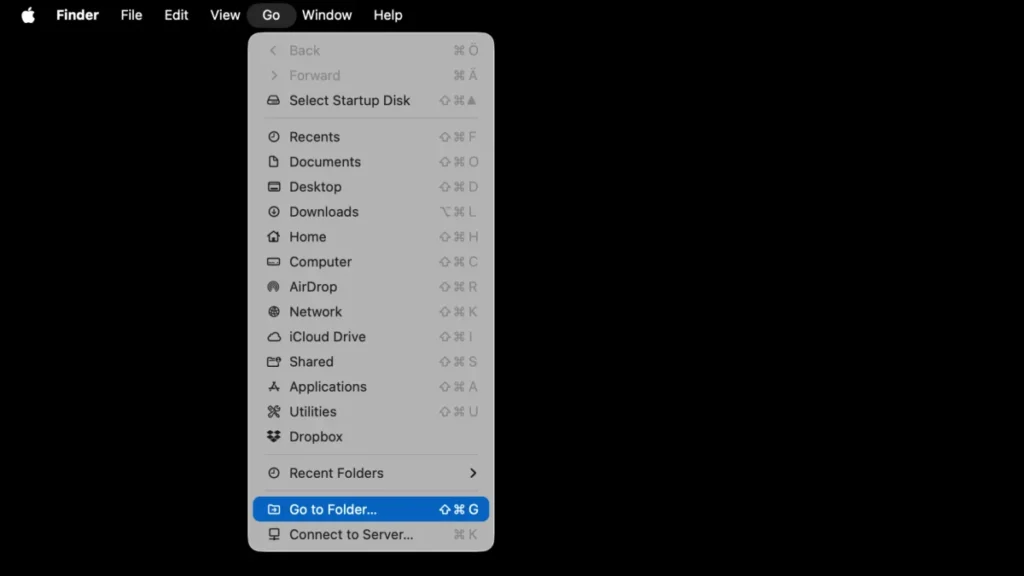
A window like this will open. Paste the file path you just copied from above and hit enter.
Select the .app file inside the FxPlug folder. Then with the app selected, press CMD and C to copy the file.
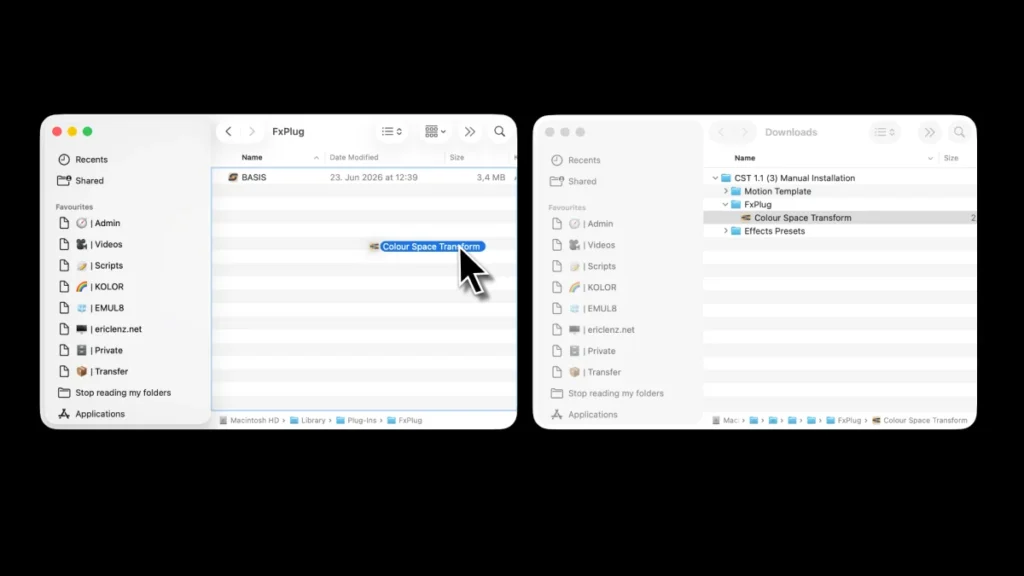
Since we’re copying a file to your system library, you need to enter your password.
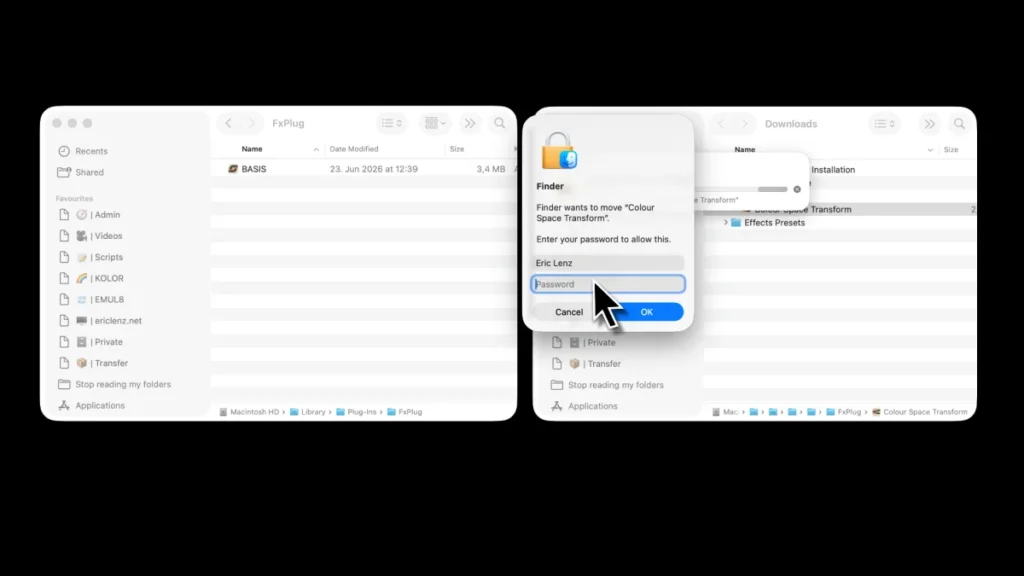
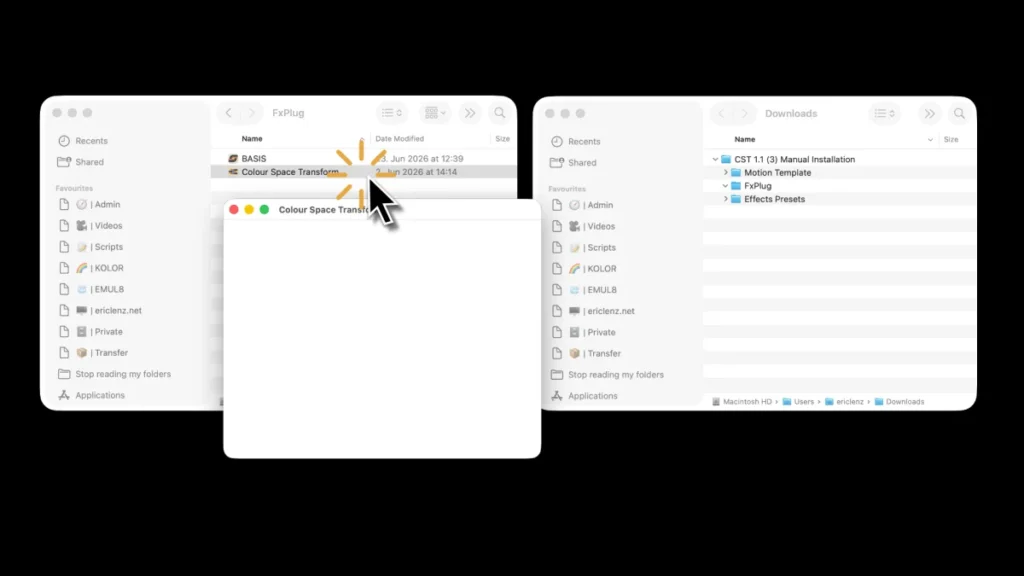
Double click to launch the app.
Leave it running for about three seconds.
Then quit it with CMD and Q.
Step 2 – Installing the Motion Template
Go to Finder. In the menu bar, click on “Go” and select “Go to Folder…”
Copy and paste this path. Then hit ENTER to go to this folder.
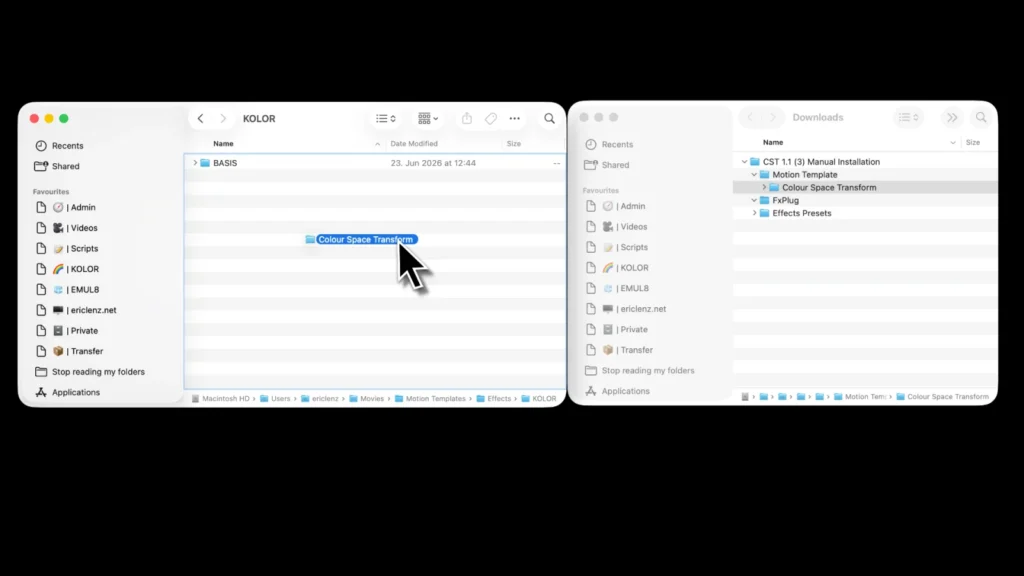
~/Movies/Motion Templates.localized/Effects.localizedIf you don’t have it already, create a folder called KOLOR.
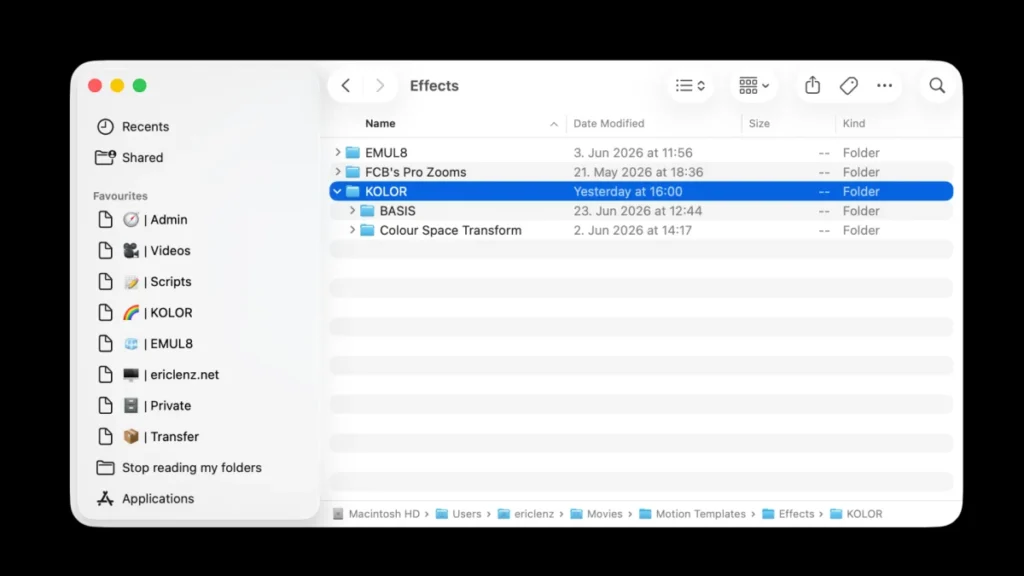
From the Motion Template folder, drag and drop the entire folder into the KOLOR folder you just created.
Step 3 – Installing Effects Presets
Go to Finder. In the menu bar, click on “Go” and select “Go to Folder…”
Next, test these three file paths. Whenever a folder shows up, open it.
Info: This might be confusing, but different installations of Final Cut Pro have different app identifiers and folder structures. To ensure a successful installation, please see which folder exists.
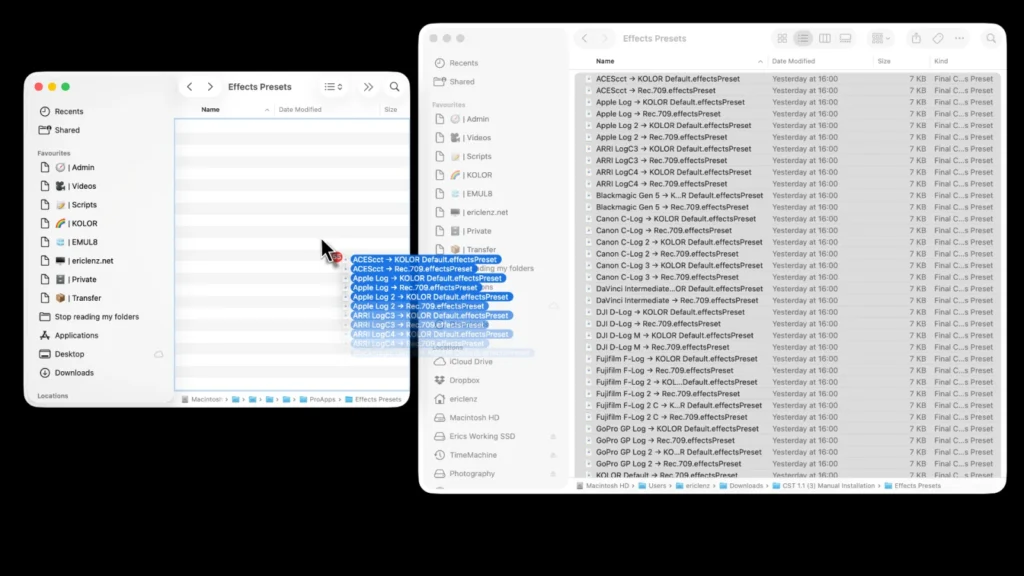
~/Library/Containers/com.apple.FinalCutApp/Data/Library/Application Support/ProApps/Effects Presets/~/Library/Containers/com.apple.FinalCut/Data/Library/Application Support/ProApps/Effects Presets/~/Library/Application Support/ProApps/Effects Presets/Lastly, from the folder with all files for manual installation, select all .effectspreset and drag and drop them into the folder(s) you just opened using the file paths above.
Please note that .effectspresets files cannot be inside folders. Final Cut Pro will not find them. You need to drag and drop the individual files.
Optional – Troubleshooting
If things didn’t work out, please have a look at our troubleshooting guides first before reaching out to us. We’re a team of only two people and enjoy a light inbox. Thank you!