If you use the following camera colour spaces, you might run into this problem
- Apple Log
(only the original Apple Log, Apple Log 2 is not affected) - Canon C-Log, C-Log 2 or C-Log 3
(if the gamut is set to BT.2020) - FujiFilm F-Log and F-Log 2
- Leica L-Log
(if the gamut is set to BT.2020) - Nikon N-Log
- Anything else where you would choose BT.2020/Rec.2020 as a Gamut
The Problem with BT.2020/Rec.2020 Footage
If you want to work with Apple Log 1 or BT.2020/Rec.2020 footage with our Colour Space Transform Plugin for Final Cut Pro, you might encounter a problem where your colours look oversaturated and just off in general.
This happens because, by default, Final Cut Pro applies:
- a camera LUT and/or
- some sort of transformation
when it encounters footage with a BT.2020/Rec.2020 gamut. Final Cut Pro will also apply its default Camera LUT when the Footage carries metadata about the camera.
For workflows with our Colour Space Transform Plugin for Final Cut Pro, we don’t want that.
Here is how to fix it.

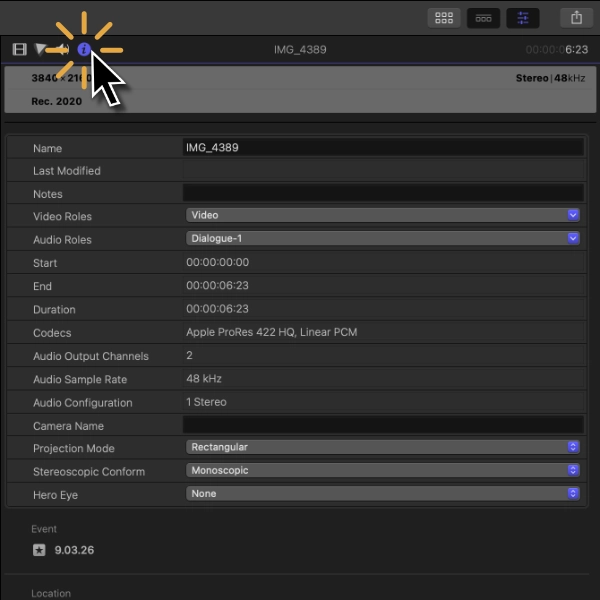
Step 1 – Go to the Info Tab
Open the inspector and click on the “i”-symbol to get to the Inspector’s Info Tab

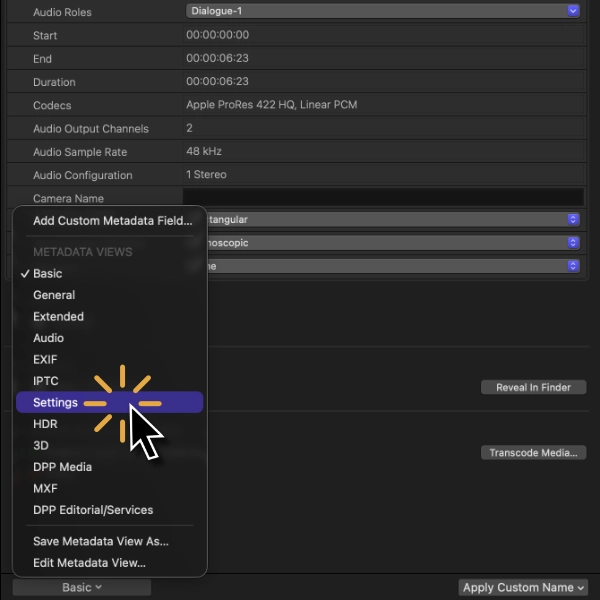
Step 2 – Change the View
To see the settings we care about, set the Metadata View to “Settings”.
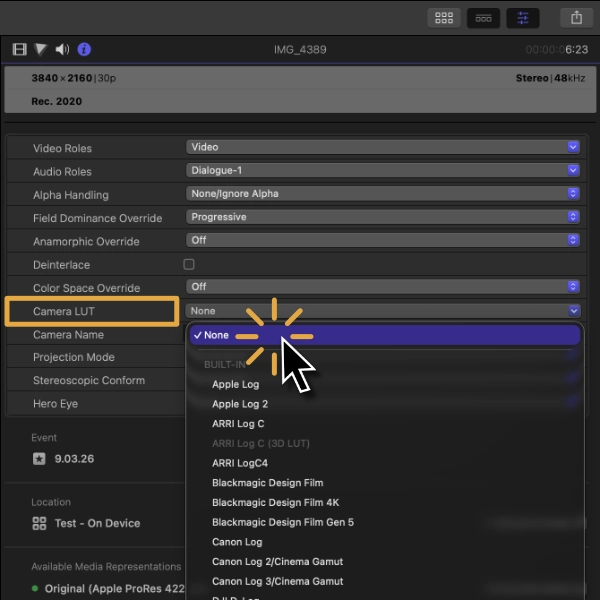
Step 3 – Disable Final Cut Pro’s automatic Camera LUT
Look for “Camera LUT” and set this option to “None”.
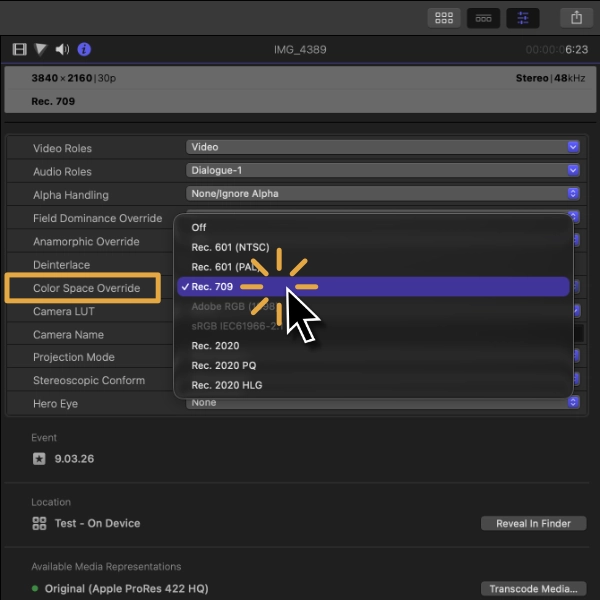
Step 4 – Set Colour Space Override
So Final Cut Pro doesn’t apply any kind of automatic transform, set the Colour Space Override to “Rec.709”.
Please note that this will NOT transform your footage. This setting doesn’t do anything at all to your footage.
It only changes whether or not Final Cut Pro respects your footage’s metadata or not. By setting it to Rec.709, Final Cut Pro will leave your footage as-is.
BT.2020/Rec.2020 footage remains BT.2020/Rec.2020, even though the metadata now says Rec.709.
We know… but it is what it is.
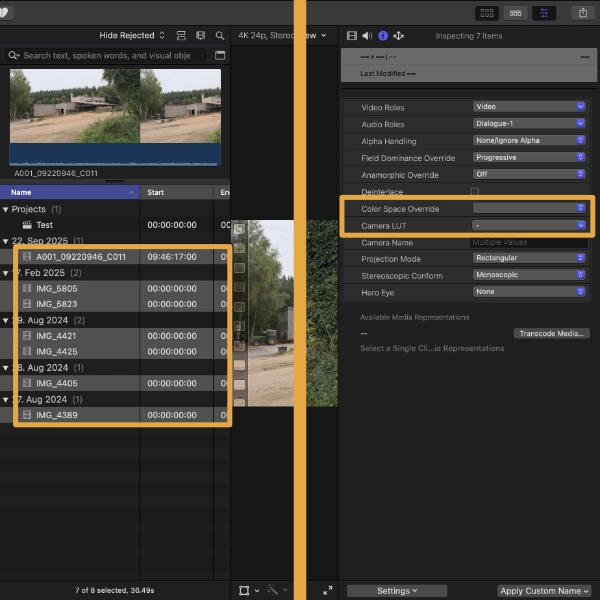
Step 5 (optional) – Changing multiple clips at once
As you just saw, making these necessary adjustments takes a couple of clicks, so you don’t want to do it all over again and again.
To change multiple clips at once, just select all clips in your browser before performing steps one to four. This changes these settings for all selected clips at once.