Quick Links
Attention: Uninstalling cannot be undone. To reinstall a plugin, you need a new installer.
How to uninstall KOLOR Plugins
If you’d like to uninstall our plugins, you only need to run these terminal commands.
Please note that
- each plugin has its individual set of commands
- you need to enter your password
- our code snippets only cover the default install location
How to run Terminal commands
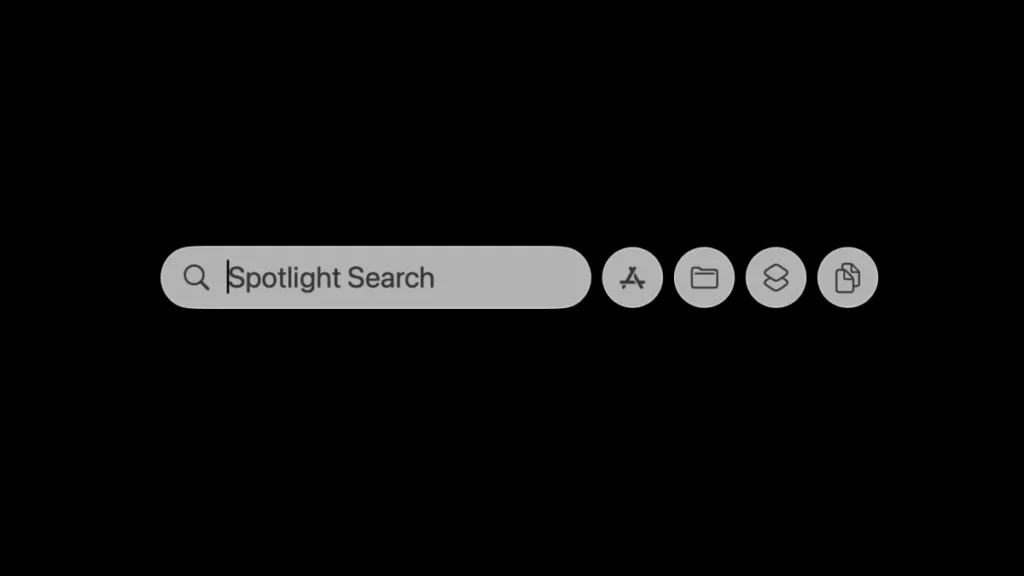
Press COMMAND and SPACEBAR to bring up Spotlight.
Type in “Terminal” and press ENTER to launch Terminal.
Now you’re ready to copy and paste our code snippets.
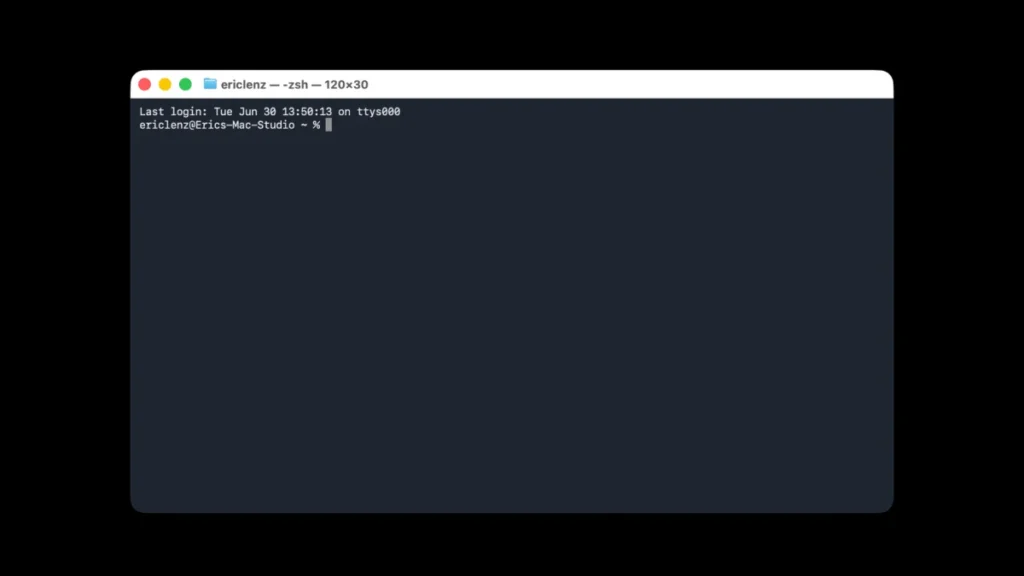
For some commands, you need to enter your password. When Terminal prompts you to enter your password, nothing will appear on your screen. Just type your password and press ENTER.
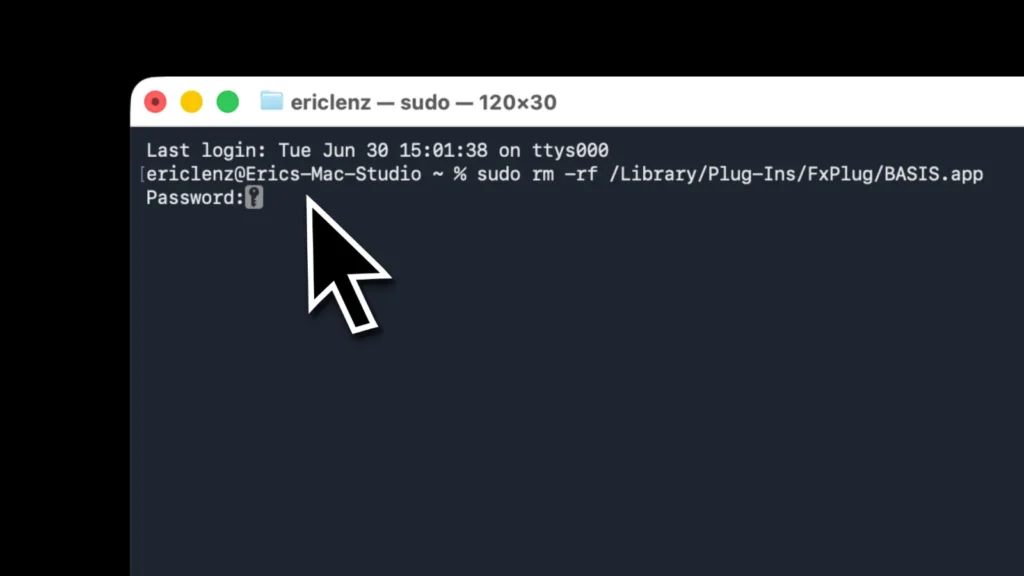
Uninstall BASIS
Before you start, quit Final Cut Pro.
Then, copy and paste these commands:
rm -rf ~/Movies/Motion\ Templates.localized/Effects.localized/KOLOR/BASISWarning! The second command is a sudo command and required privileges. You need to enter your password.
sudo rm -rf /Library/Plug-Ins/FxPlug/BASIS.appUninstall SPEKTRUM
Before you start, quit Final Cut Pro.
Then, copy and paste these commands:
rm -rf ~/Movies/Motion\ Templates.localized/Effects.localized/KOLOR/SPEKTRUMWarning! The second command is a sudo command and required privileges. You need to enter your password.
sudo rm -rf /Library/Plug-Ins/FxPlug/SPEKTRUM.appUninstall AURA
Before you start, quit Final Cut Pro.
Then, copy and paste these commands:
rm -rf ~/Movies/Motion\ Templates.localized/Effects.localized/KOLOR/AURAWarning! The second command is a sudo command and required privileges. You need to enter your password.
sudo rm -rf /Library/Plug-Ins/FxPlug/AURA.appUninstall UTENSILE
Before you start, quit Final Cut Pro.
Then, copy and paste these commands:
rm -rf ~/Movies/Motion\ Templates.localized/Effects.localized/KOLOR/UTENSILEWarning! The second command is a sudo command and required privileges. You need to enter your password.
sudo rm -rf /Library/Plug-Ins/FxPlug/UTENSILE.appUninstall BASIS
Before you start, quit Final Cut Pro.
Then, copy and paste these commands:
rm -rf ~/Movies/Motion\ Templates.localized/Effects.localized/KOLOR/GESTALTWarning! The second command is a sudo command and required privileges. You need to enter your password.
sudo rm -rf /Library/Plug-Ins/FxPlug/GESTALT.appUninstall Colour Space Transform
Before you start, quit Final Cut Pro.
Then, copy and paste these commands:
rm -rf ~/Movies/Motion\ Templates.localized/Effects.localized/KOLOR/Colour\ Space\ TransformWarning! The second command is a sudo command and required privileges. You need to enter your password.
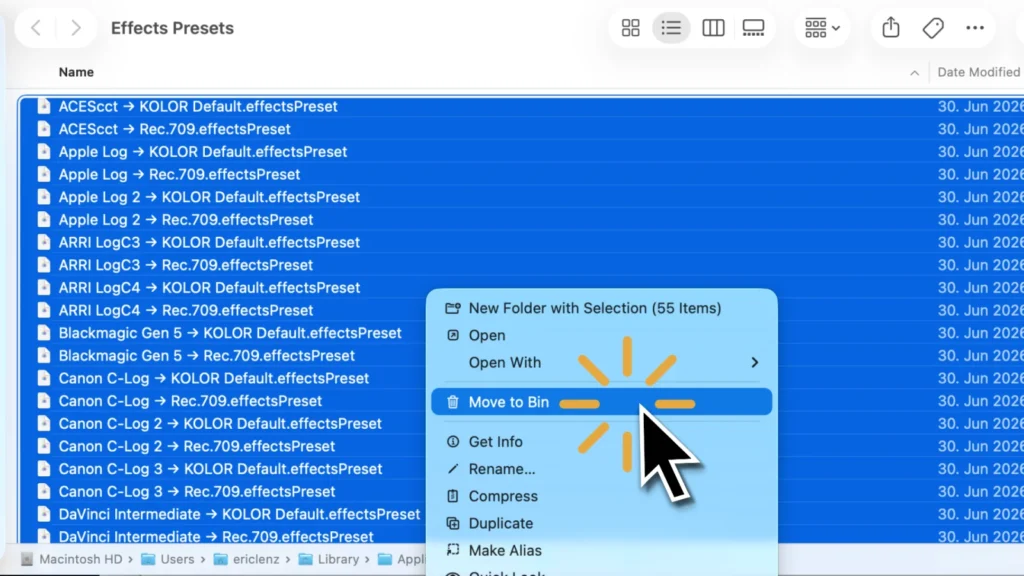
sudo rm -rf /Library/Plug-Ins/FxPlug/Colour\ Space\ Transform.appLastly, you need to remove the IDT and ODT Presets. Go to one of the presets folders.
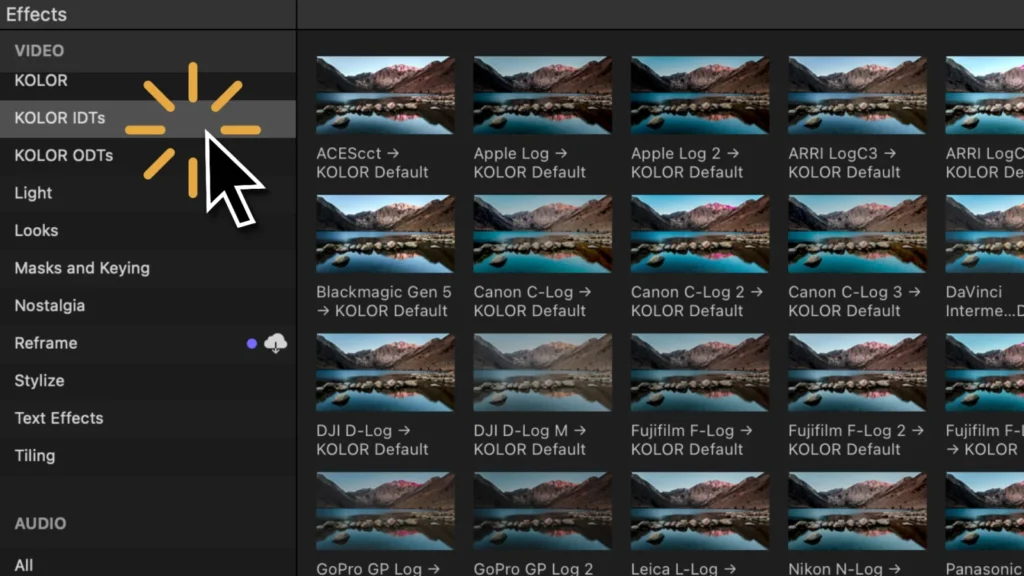
Select any preset, right-click and choose “Reveal in Finder”.
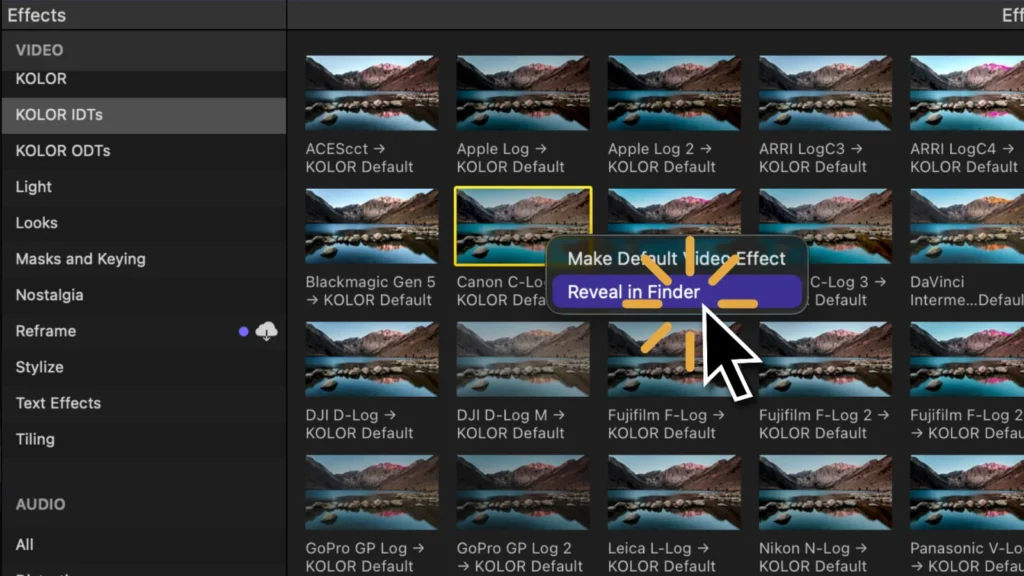
Select the Presets you want to delete.
WARNING: Your own presets live here, too. Double-check what you delete!